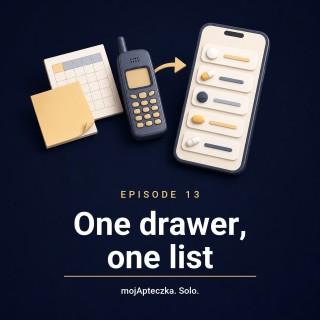
Episode 13 — A note, a spreadsheet and an old app: moving your medicines into one place
S01:E13

Episode 13 — A note, a spreadsheet and an old app: moving your medicines into one place

Episode description

A note off the fridge, an old reminder app, and a drawer with — honestly — who knows how much inside. One evening you decide: enough, get it all into one place. This episode is about exactly that move: bringing your medicines together into a single list, and the honest surprise most people hit on the way — there’s no “import a file” button. From the organisation side, not the treatment side.

Straight off, honestly: this isn’t an episode about what to take or how much. It’s about getting a scattered drawer into one tidy list. What a medicine is for and how to take it — that’s for you, your GP or your pharmacist.

Where the app helps (and where it deliberately doesn’t):

  • Adding always starts with the camera — you open the “Add” tab (the camera icon along the bottom) and photograph the front of the box. There’s no “upload a spreadsheet”, no “move it over from another app in one tap”, no bare “type the name and confirm”. If you’ve already got a photo of the box in your gallery, you can pick that instead of snapping a new one. But a name on a scrap of paper, with no box and no photo, can’t be brought across.
  • What the scan reads — off the photo the app pulls the name, the dose, the expiry date and the barcode. The barcode is just one of the recognised fields, not a key that fetches a full medicine card from a register. The batch number — the LOT — isn’t saved, so don’t go hunting for it in the app later.
  • Recognition runs on a server — so scanning a new box needs an internet connection; with no signal the photo won’t process. Worth saying plainly.
  • Fix anything by hand afterwards — open a medicine in the “Edit medication” view and tidy the name, dose, quantity, expiry date or a note. Typing exists — but as a correction after the photo, not as the way in.
  • Assign each medicine to a person — this one’s Leon’s, this one’s Basia’s, this one’s grandma Irena’s. No more wondering who the pink box belongs to.
  • An “expiring medications” list with status colours — red, amber, green (Urgent / Watch out / Safe), plus a widget on your home screen. It’s a list you look at, not a pop-up: there’s no “medicine expiring” push notification, and we won’t pretend otherwise.
  • Share the cabinet, or share the list — invite the household in and everyone sees the same stock, or send the list itself to someone outside the family as a link.
  • “All medicines” builds a shopping list, not your cabinet — it’s a browser of a database of about seventy thousand products; from there you drop items onto a restock list. A medicine only ever gets into your cabinet through a photo.
  • Works offline — browsing, editing and ticking things off work without a network (out at the allotment, say); only scanning a new medicine needs a connection.

The point: moving the list and having a tidy-up become one and the same job. You pick up each box, check the date, and the out-of-date ones go to one side to hand back at the pharmacy — not into the app. After one evening with the drawer and the camera, you’ve got a single list instead of a note, a spreadsheet and an old app, all separately.

Materials:

  • The mojApteczka app: mojapteczka.pl — free, works offline
  • In this episode: adding by photo, the “Edit medication” view, assigning medicines to a person, the “expiring medications” list and status colours, sharing the cabinet, the “All medicines” register and the restock list
  • Contact: kontakt@mojapteczka.pl

About AI in this episode. The dialogue was written by Tomasz Szuster. The voices you hear are AI-generated synthetic voices — not recordings of the hosts. We say this straight out, because we think it should be the standard for any podcast made this way. Full details in the show notes and in the episode outro.