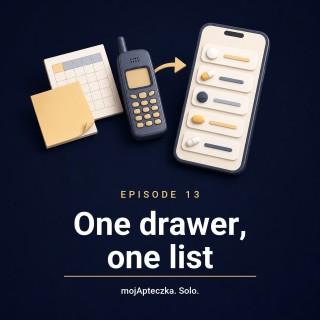
Right. I sat down last night with a note off the fridge, with an old reminder app, and with a draw that's got...
Download transcript (.vtt)
0:00
0:09
0:16
0:18
0:24
0:31
0:34
0:39
0:45
0:51
0:56
0:59
1:03
1:06
1:11
1:12
1:20
1:23
1:25
1:27
1:30
1:35
1:37
1:41
1:44
1:50
1:54
1:58
2:04
2:07
2:09
2:10
2:12
2:15
2:19
2:22
2:29
2:31
2:36
2:42
2:43
2:44
2:47
2:52
2:54
2:56
2:57
3:01
3:04
3:07
3:08
3:14
3:17
3:19
3:22
3:26
3:27
3:29
3:32
3:33
3:39
3:44
3:51
3:56
4:04
4:05
4:10
4:13
4:16
4:18
4:20
4:22
4:25
4:29
4:35
4:36
4:40
4:45
4:50
4:52
4:53
4:54
4:56
4:58
5:03
5:05
5:08
5:11
5:14
5:17
5:20
5:23
5:26
5:30
5:33
5:34
5:36
5:38
5:40
5:43
5:47
5:48
5:53
5:56
6:00
6:04
6:05
6:12
6:16
6:21
6:25
6:28
6:30
6:35
6:39
6:41
6:42
6:45
6:46
6:51
6:56
6:58
7:02
7:05
7:07
7:10
7:15
7:19
7:23
7:25
7:30
7:34
7:39
7:45
7:47
7:50
7:54
7:58
8:02
8:06
8:09
8:15
8:19
8:21
8:24
8:29
8:31
Honestly, I've no idea how much is in there. And I decided to finally get it all into one place.
In the Moya Potechka app.
Exactly. And straight away, question number one. Where do I upload the list?
Some of it's in the notes on my phone, some in a spreadsheet, some in that old app.
I export a file and drop it in. Yes?
And there I've got to stop you right away. There's no such thing as upload a file.
No importing from a spreadsheet. No move it over from another app in one tap.
I checked it in the code specially before we sat down for this. That feature simply isn't there.
Hang on. So I've got to type every medicine in by hand?
Not by hand. By photo.
You open the Add tab. It's along the bottom, the camera icon.
And the camera comes on straight away.
Because adding a medicine in the Moya Potechka app always starts with one thing.
You take a photo of the box.
Always? There's no little add a medicine by hand window tucked away somewhere.
Type the name, type the dose, done?
There isn't. There really isn't.
The way in is the camera.
You photograph the front of the box.
And the app pulls the name, the dose, the expiry date and the barcode off it.
And what's the barcode for?
It's just one of the fields the scan reads off the photo.
Alongside the name, the dose and the expiry.
I'm not going to kid you that the code itself fetches a full medicine card from some register.
And separately, in the app there's a database of about 70,000 entries.
But that one's for building a shopping list, not for filling your cabinet.
All right, but listen, I've got this list mostly on paper.
Some of the boxes I haven't even got to hand.
They're at Grandma Irena's.
They're in the other cupboard.
And those are two different situations.
If you've got the box, you photograph it.
If you've already got a photo of the box in your phone's gallery,
you can pick it from the gallery instead of snapping a new one.
But if all you've got is the name on a bit of paper, no box and no photo,
that one you can't bring across.
Because there's no type-just-the-name-and-confirm route.
So it's an evening with the drawer, snapping box after box.
Yes.
And you know what?
I actually don't think that's a downside.
Because along the way, you do something almost nobody does willingly.
A proper sort-through.
You pick up each box.
You look at the date.
And part of what's in that drawer goes straight to one side,
to hand back at the pharmacy, not into the app.
Because some of it's out of date.
Exactly.
With this method, moving the list and having a tidy-up are one and the same thing.
You're not copying the chaos across one-to-one.
You're sifting it as you go.
And what if the photo doesn't catch something?
Because not every box looks like it's off an advert.
They get creased.
Some aren't even in English.
Then you fix it by hand.
Once you've taken the photo,
you can open each medicine in the Edit Medication view and tidy it up.
The name, the dose, the quantity, the expiry date, a note.
So typing things in does exist, but as a correction after the photo, not as the way to start.
Now, tell me one thing completely honestly.
This recognising from a photo, does it happen on my phone or does it send the photo off somewhere?
It sends it.
The recognition itself is done by a server, so to scan, you need the internet.
I've got to say that plainly.
With no connection, the photo won't process.
OK, that's fair enough.
I'd rather know than guess.
And a second honest thing.
The app saves the expiry date off the photo,
but the batch number, the lot, it doesn't save.
I mention it so you're not later hunting in the app for something that isn't in there.
Right.
So now let's say I've got it all inside.
What does that actually give me that the note on the fridge didn't?
First thing, you can assign each medicine to a person or to someone in your care.
This one's Leon's.
He's nine.
This one's Bash's.
She's five.
And this one's Grandma Irina's.
So I don't have to wonder who that pink box actually belongs to.
You don't wonder.
Second thing, dates.
There's a separate expiring medications list,
where the colours tell you what's pressing.
Red, amber, green.
Urgent, watch out, safe.
Plus a widget on your phone's home screen.
So the app reminds me something's about to go out of date.
Let me correct you here, to keep it honest.
It's not a notification that pops up on its own.
Medicine expiring.
It's a list you look at.
And a widget.
There's no expiry push.
I don't want you counting on an alarm that isn't there.
I appreciate you telling me that, rather than promising.
Third thing.
And this is probably the biggest difference from a bit of paper.
You can share the cabinet with your family.
You invite the household in, and everyone sees the same stock.
Or, if you just want to show someone outside the family the list itself,
you send it as a link.
And that all medicines thing I saw in the app, is that for adding too?
That's a common mix-up, so I'm glad you asked.
All medicines is a browser of that database of 70,000 products.
From there, you drop items onto a shopping list.
It's called your restock list.
That's not adding a medicine to your cabinet.
A medicine only gets into the cabinet through a photo.
From the database, you build a shopping list, not a cabinet.
So two different drawers.
One, what I've got.
The other, what to buy.
Perfectly put.
And once I've got it all inside, does it work with no signal?
Because at Grandma Irene's allotment, there's practically no reception.
Browsing, editing, ticking things off.
Yes, that works without the internet.
Only scanning a new medicine needs a connection,
because the server analyses the photo.
So my real plan for tonight?
The drawer, the camera, snapping box after box.
The out-of-date ones to one side, to hand back at the pharmacy.
And the rest, I assign to a person.
And after that one evening, you've got a single list.
Instead of a note, a spreadsheet, and an old app, all separately.
And by the by, everything I'm talking about here is a real feature of the app.
I'm being specific about it, so it's clear what the ad really does, and what it doesn't.
If you'd like to give it a go, that's the Moya Pteczka app.
The app is free and works offline.
You'll find the link in the episode description.
And if you enjoyed the episode, share it with someone whose medicine drawer is one big muddle.
One more thing before we go.
This podcast is made with the help of artificial intelligence.
I wrote the dialogue myself, but the voices you're hearing aren't ours.
They're AI-generated synthetic voices.
We're telling you this straight out because we think it should be the standard for any podcast made this way.
Full details are in the show notes and in every episode description.
And what's the next episode about?
About how to check what a medicine actually is.
Where to look for official information about it without pretending to be a doctor.
Until next time.
Until next time.